Start Here: Set Up a Pinterest Business Account
A real-time walkthrough of setting up and claiming a Pinterest business account, with context on what actually matters, what doesn’t, and how these early choices affect everything that comes next.
If you do nothing else this week, do this.
Pinterest is a search engine. And if you’re using it for business without a business account, you’re essentially whispering into the void.
You have two options:
🤙🏽 Option A: Start Fresh
Go to Pinterest.
Click the red Sign Up button.
Select Create a Business Account.
This is ideal if:
- Your current account is chaotic.
- You have old boards that don’t reflect your brand.
- You want a clean slate.
- You want to preserve your old account to personally use it
- You don't have lots of traction on the old account
There is power in starting clean. (We love a strategic reset.)
🤙🏽 Option B: Convert Your Existing Account (Highly Recommended if You Have Traction)
If you already have pins or boards that have been quietly working for you, do not abandon them in a dramatic reinvention spiral (even if they aren't related to your business).
Here’s what you do:
- Log into your existing Pinterest account.
- Click the dropdown arrow in the top right corner of your screen.
- Select Settings.
- In the left-hand menu, click Account Management.
- Look for the option that says Convert to a Business Account.
- Follow the prompts.
Pinterest will ask:
- What your business name is
- What category you fall under
- Whether you want to run ads (you can skip this, we’re building organic search first)
Once you complete this, you’ll officially have access to:
- Analytics
- Website claiming
- Rich Pins
- Advertising (optional, not required)
Nothing visually dramatic will happen. You won’t get confetti. But you will now have access to the data that makes strategy possible.
If you already have traction, even mild traction, converting preserves:
- Existing engagement
- Board authority
- Indexed pins
- Search history
We build on existing momentum whenever possible.
📍Claim Your Website
This step separates hobbyists from business owners.
Go to Pinterest:
- Click the three dots in the top right
- Select Edit Settings
- Go to Link to Pinterest
- Follow the steps under “Claim your website”
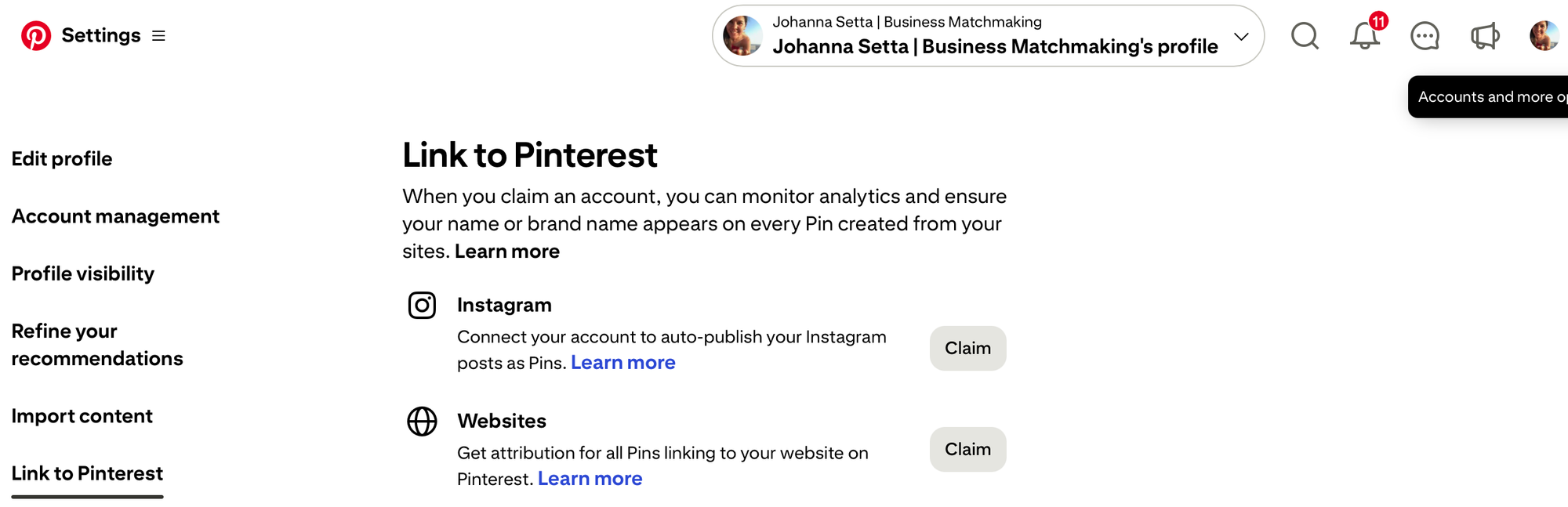
Pinterest will give you one of three verification methods (option 3 is often the easiest):
1. Add an HTML tag
Pinterest gives you a short line of code.
You copy it and paste it into the “header” section of your website.
If you use:
- WordPress → you can paste this into your theme settings or use a header plugin.
- Showit / Squarespace → there’s a “Custom Code” or “Header Code” section in settings.
- Shopify → this goes into your theme’s code under the
<head>section.
If that sentence made you tense, choose option 3 instead.
2. Upload an HTML file
Pinterest provides a small file.
You download it and upload it to the main directory of your website.
This is usually done through your hosting provider (like Siteground, Bluehost, etc.). If you don’t know what your hosting dashboard is, skip this method.
3. Connect Through Your Website Platform (Easiest for Most People)
If you use platforms like WordPress, Shopify, Wix, or Squarespace, Pinterest may allow you to connect directly by logging into your site through their integration.
Instead of touching code, you’ll:
- Click Claim next to your website inside Pinterest.
- Choose the option to Connect or Log in through your provider (if available).
- Select your website platform.
- Log into your website when prompted.
- Approve the connection.
*Make sure that if you are connecting it through your domain, you are creating a code then you select TXT in the drop-down and put an @ sign in the "name".
You must connect your website so you can:
- Track analytics
- See which pins drive traffic
- Attribute conversions properly
- Build data over time
If you do not claim your website, you are guessing. We don’t guess here.
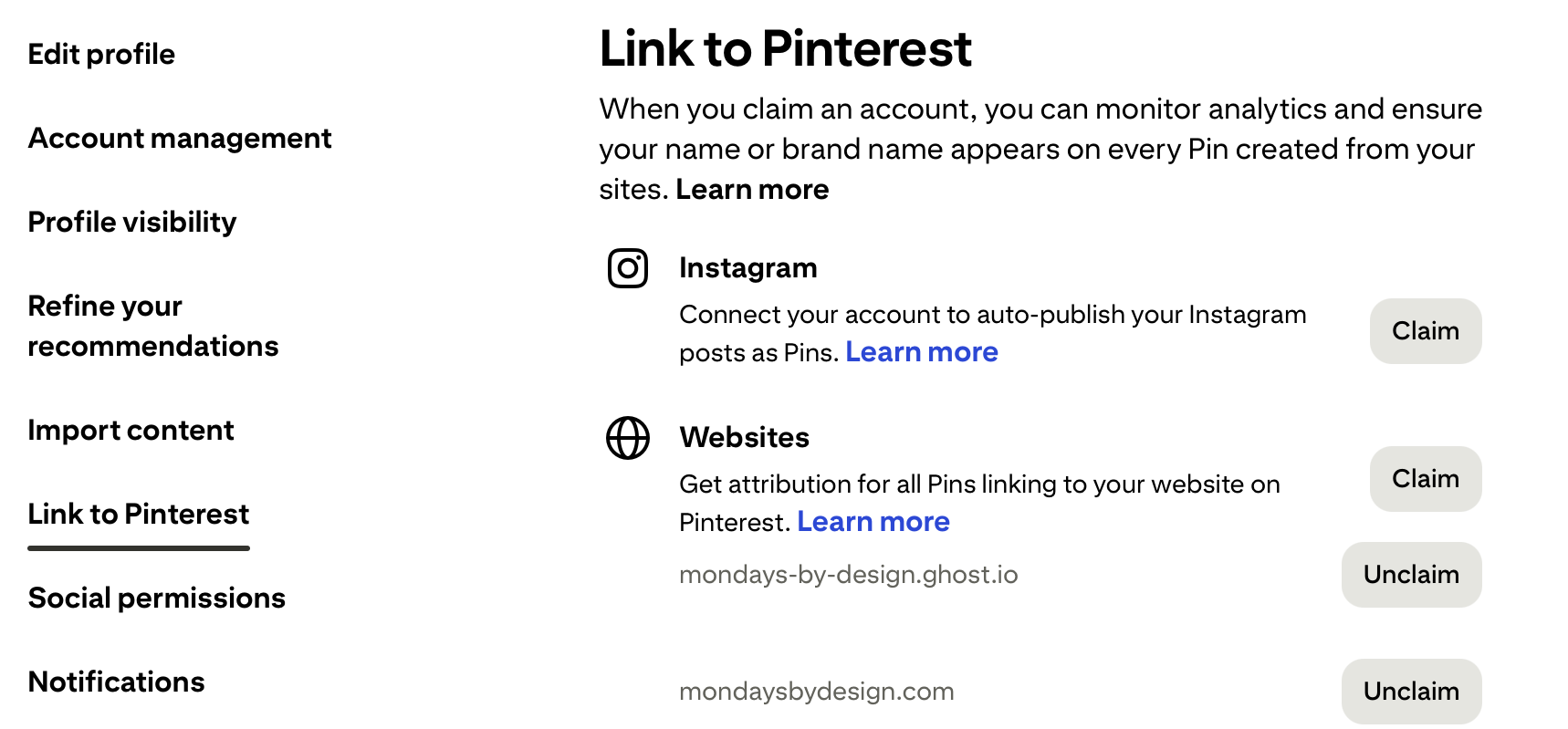
❤️🔥 YES! You can claim more than one website (up to 5 from your Pinterest account).
If You’re a Service Provider
When you claim your website, Pinterest will begin associating your domain with every pin that links back to you.
For service providers, this matters because:
- Pinterest becomes a lead generator, not just a traffic source.
- Your goal is email subscribers, discovery calls, applications, or inquiries.
- Your authority compounds through consistent search visibility.
You are not trying to “go viral.”
You are trying to:
- Show up in search
- Build trust at scale
- Convert traffic into conversations
Claiming your site ensures that when your blog posts, opt-ins, or resources are pinned, Pinterest knows they belong to your business.
This builds domain authority over time.
Which means future pins rank faster.
Search builds search.
If You’re a Product-Based Business
Claiming your website is incredibly important if you sell physical or digital products.
Why?
Because Pinterest treats verified merchant domains differently.
Once claimed, you can:
- Apply for Rich Pins
- Sync product catalogs (if using Shopify)
- Potentially access Merchant features
For product businesses, Pinterest acts more like Google Shopping than Instagram.
People are often searching with intent:
- “linen wallpaper”
- “farm style pottery”
- “spice blends for easy recipes”
When your domain is claimed:
- Pinterest attributes product pins directly to you
- Your brand name appears consistently
- Your analytics reflect real purchase-driven traffic
Pinterest traffic for products compounds beautifully when structured correctly.
But only if your infrastructure is set up properly.
And one important note you may want to include: If you don’t see the direct connection option, it simply means your platform doesn’t support that integration, not that you’ve done anything wrong. In that case, choose the HTML tag method instead.
📣 What’s Next:
Now that your account is set up and your website is claimed, we’re ready for the next step: finishing your setting set-up & identifying your pinterest keywords together.
We won’t dive into setting up your profile, editing boards, or touching any pins until we know the right keywords.
Keywords are the foundation of everything on Pinterest. They tell the platform, and your ideal audience, exactly who you are, what you do, and how you help/what you sell.
Next, we’ll learn where those keywords will live, how to use them strategically, and make sure every move you make after this is intentional, not guesswork.
Because Pinterest rewards clarity, consistency, and strategy, and that’s exactly what we’re building together!